
On this page
The tools and resources are supplied in a zip file. Extract the contents of the zip file to a location ArcGIS Pro will be able to access.
The recommendation is that you add them into a folder in your documents folder such as C:\Users\<user>\Documents\, this will avoid possible issues where you may not have administrative privileges on your machine. You would then just need to connect to the folder in your ArcGIS Project to that location.
The tool consists of a resources folder and a toolbox file and so will not require any further installation.
Resources folder
The tool is supplied with a resources folder which contains a config file, a toolbox containing FME workbenches, some utility scripts and default Network configurations. It is important that this folder is present in the same folder as the toolbox file.
The Toolbox
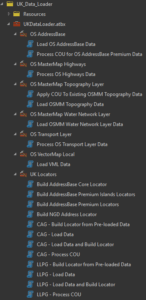
The toolbox contains a toolset specific to each dataset which will contain one or more tools that allow you to process the data.
General settings
Adding a CONFIG keyword
When loading data in any of the scripts, in the Environments tab – below where it says Geodatabase, you can add a CONFIG keyword.

Handling temporary processing space
Where you have limited storage on a drive you can set the scratch workspace to be created in a place where you have more space available.
In addition you can set the temp folder location that windows defines so that ArcGIS Pro will use that for storing temporary files.
Adding a scratch database

In the Analysis tab, select Environments.

Scratch workspaces are used to temporarily store information whilst the tool is processing the data. Consequently, where you are processing large amounts of data, the scratch workspace can become very large.
Setting the Windows TEMP folder location
Within your Windows environment variables in you can set values of TEMP and TMP to a location or drive with the most available space.
Particularly when building locators containing national level datasets there can be a significant space requirement for sorting and categorising the data.

Supported versions of ArcGIS Pro and Databases
Each section of help details the minimum version of ArcGIS Pro that is required along with any additional licences or extensions that are needed.
Whilst these are minimum versions we would always recommend that you keep ArcGIS Pro up to date with the latest version and patches.
SQL Server and Oracle enterprise geodatabases
The versions supported are dependent on the support of the version of ArcGIS Pro that you have installed. So please refer to the ArcGIS Pro help for details of specific version support.
PostGres enterprise geodatabases
The UK Data loader tool has been tested with the following minimum configuration
- RDS Postgres 12.7
- 8.1 SDE
- PostGIS 3.0.3